If you are staring at an Important Display Message on an iPhone 13 or iPhone 14, the short answer is simple: this is usually not a software glitch you can dismiss with a restart. Apple ties the notice to the display’s service history, and the phone is telling you that the screen was not verified, not finished, or not matched the way Apple expects.
That matters because a lot of people assume the fix is hidden in Settings. It usually is not. On these models, the message is part of the device’s hardware record, so the real solution is to check the display history and, when needed, complete a genuine repair process.
If you bought the phone used, had the screen replaced at a third-party shop, or are trying to clean up the device before selling it, you need to know what the label means before you start guessing. In most cases, the fastest path is to understand whether the phone shows Genuine, Unknown, Used, or Finish Repair, then work from there.
- iPhone 13 and iPhone 14 belong to Apple’s iPhone 12-and-later group where Parts and Service History is available.
- Restarting, resetting, or updating iOS does not remove a hardware service record.
- The supported fix is a proper display repair plus calibration through Apple’s repair flow.
What the Important Display Message Actually Means
The phrase “Important Display Message” is not really a magic-button problem. It is usually shorthand for what Apple shows in Settings > General > About under Parts and Service History. On iPhone 13 and 14, the display can be listed with labels such as Genuine, Unknown, Used, or Finish Repair.
Apple says these messages do not automatically block normal use unless the description says otherwise. That is important because the warning is often informational, but it also gives you a clear signal about whether the display has been verified, calibrated, or linked properly to the device.
If the display has been repaired with genuine Apple parts and the calibration is completed, you should see a cleaner status. If the part is unverified, modified, or not working as expected, the phone may keep showing an Unknown-type message instead.
| Status | What it usually means | What it tells you |
|---|---|---|
| Genuine | The display was repaired with genuine Apple parts and processes | The repair record is aligned with Apple’s supported flow |
| Used | The part was already used or installed in another iPhone | The phone recognizes the part, but it is not brand new |
| Finish Repair | The repair was started but not completed with Repair Assistant | The calibration step still needs to be finished |
| Unknown | The display is not genuine, not verified, modified, or not linked properly | The phone cannot confirm the part the way it wants to |
Why It Shows Up After a Screen Replacement
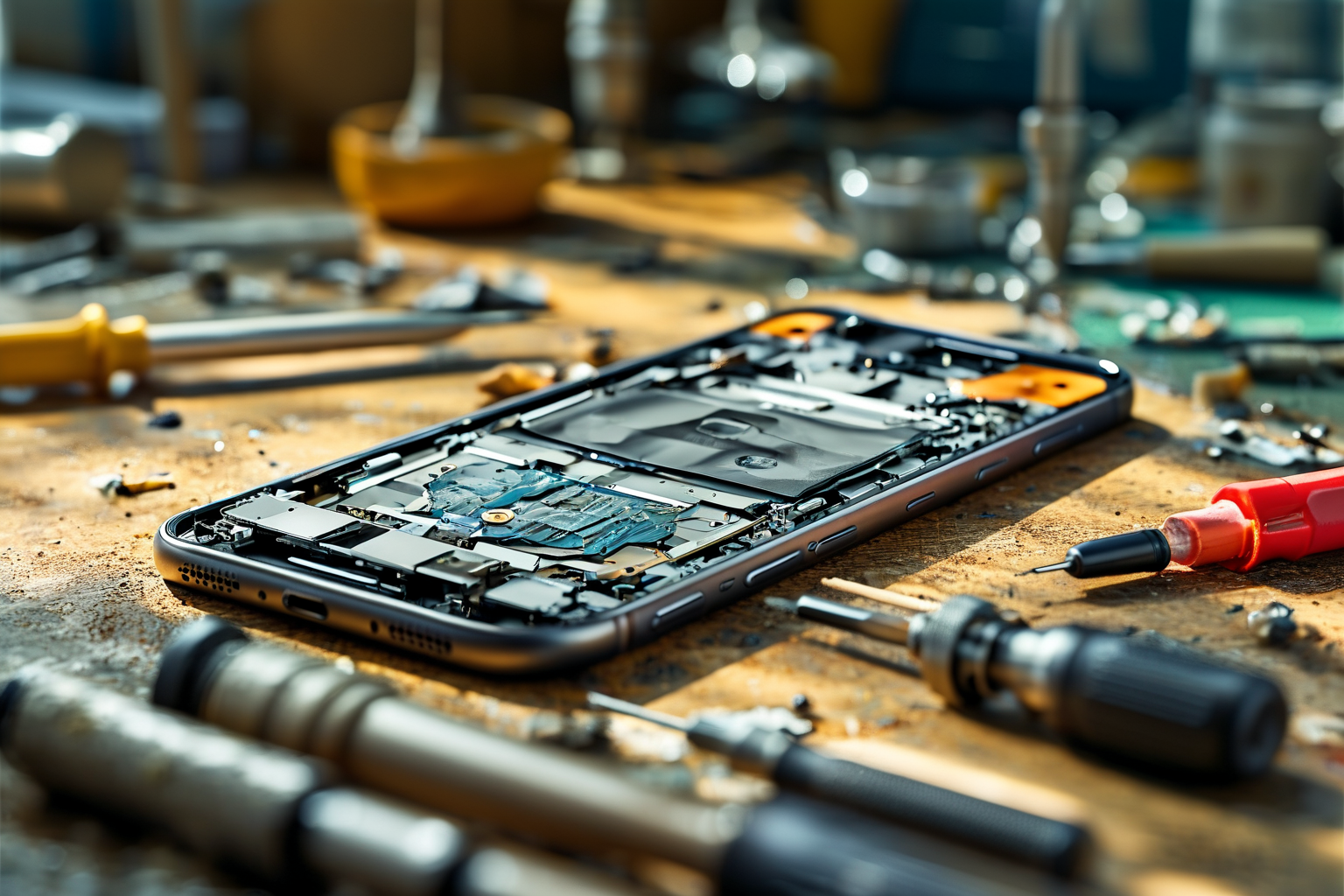
The message usually appears after a screen replacement because the phone is keeping a hardware record, not because the glass looks different. A replacement screen can look perfect from the outside and still be marked as Unknown if the part was not genuine, not yet linked to the iPhone, or not finished through the proper repair workflow.
This is why people get frustrated. They expect a software fix, but the phone is reporting the state of the part itself. If the display was swapped by a third-party shop and the repair was not done through Apple’s calibration process, the notice can stay in place even if touch, brightness, and color all seem fine.
In other words, the phone is not “confused” in the way a frozen app is confused. It is doing exactly what it was designed to do: record that the display history changed and surface that change to the user.
How to Clear It the Supported Way
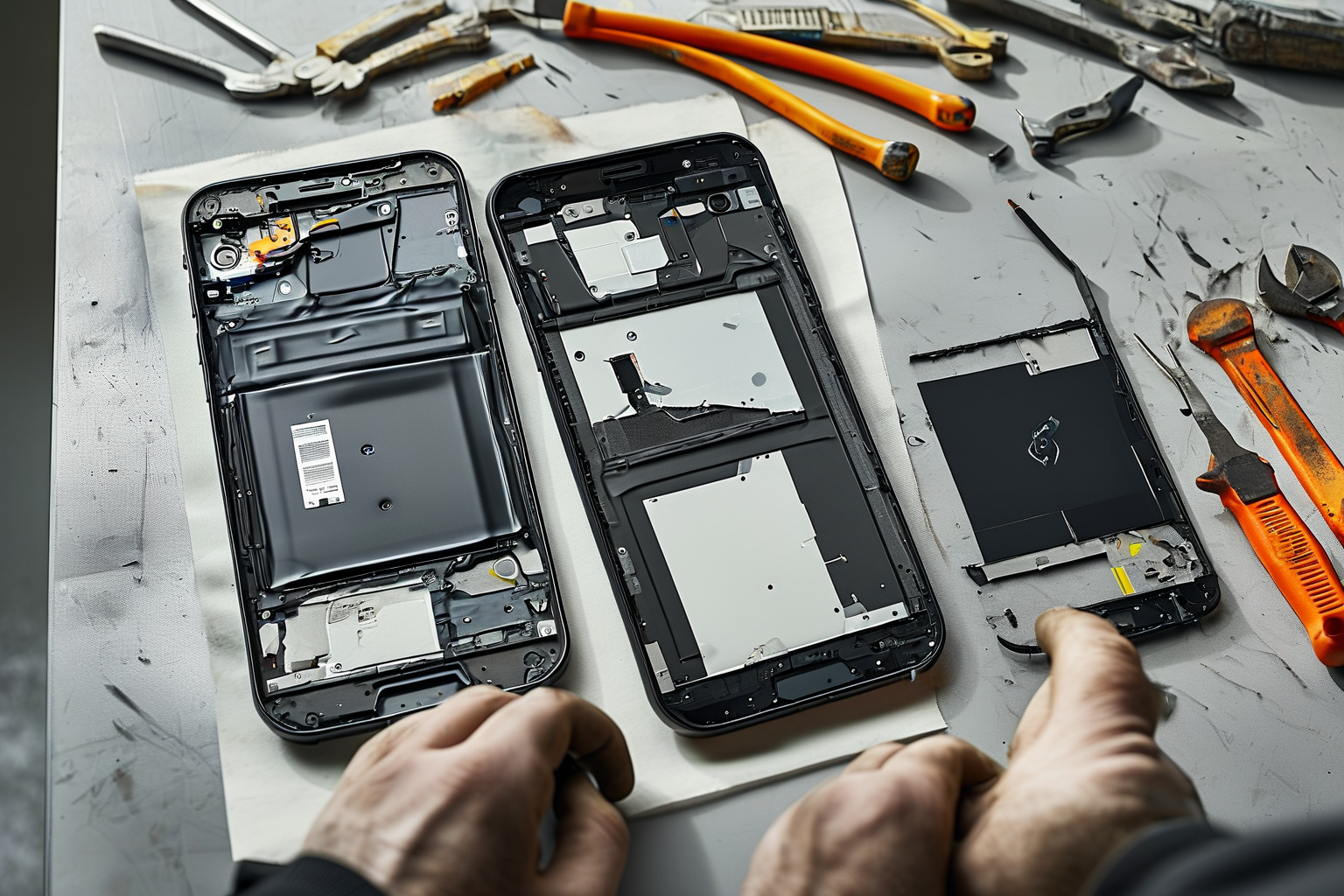
The supported way to clear the warning is to use a repair path that Apple recognizes. Apple says genuine parts are individually calibrated, and if the repair is completed properly, the device can show Genuine or Used instead of an unresolved warning.
If the repair is not finished, the phone may show Finish Repair until the repair is completed with Repair Assistant. Once the service is done and the phone connects to the internet, you can tap the part for more details. That is the point where the record is updated, not after a random settings change.
So the practical fix is straightforward: take the phone to Apple or an Authorized Service Provider, use a genuine display, and complete the repair flow properly. If the display is already genuine but not finished, the goal is to complete calibration, not to replace the screen again.
What to Do If You Bought the Phone Used
If you bought the phone second-hand, the message is not something you should try to hide. It is part of the phone’s history, and that history can matter for resale value, trade-in value, and how much confidence you should have in the repair work.
The best move is to open Settings > General > About and check what the phone says next to the display. If you see Unknown, you should assume the display is either non-genuine, unverified, or not linked properly. If you see Genuine or Used, the repair history is at least aligned with Apple’s supported path.
That does not mean the phone is unusable. It just means you have to decide whether the price matches the repair history. For a lot of buyers, that is the entire point: the message is less about cosmetics and more about trust.
What Not to Try, and the Bottom Line
What you should not do is waste time on reset tricks. A full reset will not delete a display service record, and reinstalling iOS is not a legitimate shortcut for a hardware history message. If someone promises a “one-tap fix” for this, they are usually selling hope, not a real solution.
The clean rule is simple. If you want the message gone in a supported way, the display needs a proper repair with genuine parts and calibration. If you do nothing, the message may stay, and if the phone came from a repair that Apple cannot verify, it may stay exactly where it is.
For iPhone 13 and 14 users, that is the real answer. Important Display Message is not a typo or a temporary bug; it is a service-history signal. Fix the hardware history, and the warning follows. Ignore the history, and the warning stays.
FAQ: Common Questions About the Message
Can I remove it without replacing the display? Not in any supported way. If the phone is showing an Unknown or unfinished repair state, the warning is tied to the part history, not just a software setting.
Will a reset or iOS update remove it? No. Those steps may refresh the system, but they do not rewrite the hardware record that Apple stores for the display.
Does the message always mean the phone is broken? No. Apple says these labels do not automatically stop you from using the phone unless the description says otherwise. The message is mainly there to tell you what kind of repair history the device has.
Source: Apple Support documentation on About iPhone Parts and Service History and About genuine iPhone batteries.